Let the AI test what it builds: give it hands and eyes
Let the AI test what it builds: give it hands and eyes
An AI writes code faster than you can check it. So you end up as the tester: you open the app, click around, take a screenshot, paste it back, explain what’s wrong. You are the slow part.
The fix is simple to say: let the AI use the app itself. Give it hands to click and eyes to see, and it can check its own work before it reaches you.
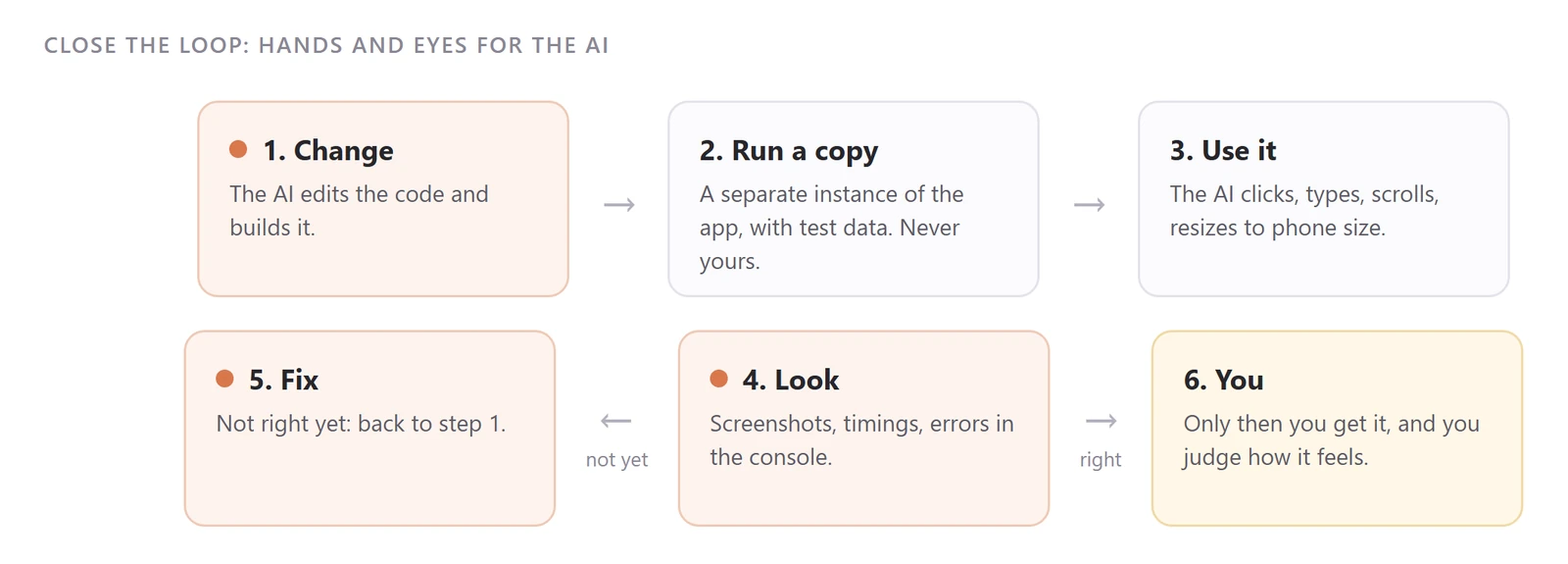
1. A copy it can break
Never let the AI play with your real data. Give it its own instance of the app:
- Web app: the dev server, with a test database or seed data.
- Desktop app: many are built on Electron (VS Code, Slack, Obsidian…). They can start with their own profile folder, so nothing touches yours:
TheApp.exe --user-data-dir="test-profile" --remote-debugging-port=9338
Then a small script copies each new build into that copy and reloads it.
2. Hands
The AI needs a way to click, type and scroll for real.
- In a browser, a tool like Playwright, or a browser extension for your AI, does it.
- For an Electron app, the debugging port above speaks the Chrome DevTools Protocol. A script of 80 lines is enough for the basics:
node cdp.js click 54 730                  # a real mouse click
node cdp.js type "Water the garden"       # type text
node cdp.js eval "return document.title"  # run code inside the app
node cdp.js shot screen.png               # take a screenshot
Ask your AI to write that script. It’s a good first task.
3. Eyes
Today’s models read images. So the loop becomes: click, take a screenshot, look at it, decide. Add two more senses:
- The console: errors the screen doesn’t show.
- Numbers: time a click with
performance.now(). “It feels slow” becomes “it takes 140 ms”, and then “it takes 12 ms”.
Phones too: browsers have a device mode, and some apps have a mobile layout you can switch on in a narrow window. Not a real phone, but it catches most layout problems.
4. Make it a habit
Write the loop in your instructions file (CLAUDE.md, AGENTS.md…), so the AI does it every time without being asked:
After each change: build, deploy to the test copy, use the feature,
take a screenshot in light and dark mode, check the console,
then close the test copy. Show me the screenshot as proof.
“Show me the proof” matters. An AI that says “done, it works” without a screenshot is guessing.
What it caught for me
On my Obsidian plugin
A row that never unfolded: a class name already used elsewhere, obvious on the screenshot, invisible in the code. A list that felt laggy, measured at 140 ms, brought down to 6 to 16 ms. And a test that failed only because the test window was hidden behind others.
Two traps
- Your data in screenshots. Use a demo dataset with fake names. All the Snailkit screenshots on this blog come from a fictional consultant’s vault.
- Background windows. Hidden or minimised windows pause animations and timers. Bring the test window to the front before you trust a result.
What stays yours
The AI checks that it works. You judge whether it feels right, on a real device. My feedback is rarely “it’s broken”, more often “it works, but it doesn’t feel right”. That part stays human.
This is one piece of a bigger setup, where Claude Code and Codex build together.